 Relay Publish
The short answer
Decide what must stay visible before changing the frame. Preserve the full image when context matters, or crop after checking movement. Preview the final sequence, not just its opening frame.
1. Identify what carries the explanation
Watch the horizontal edit and note what viewers need to see: a face, both hands, a product or the complete demonstration. The subject is not always in the centre. A tool near the edge may matter more than the scenery taking up half of the image.
Check moments when the subject moves as well. A frame that works at the start can cut off an action seconds later. If two people stand far apart, a tight crop may not serve the explanation, even when it produces an attractive thumbnail. Make the choice around the content rather than the opening image.
2. Compare three approaches instead of one default
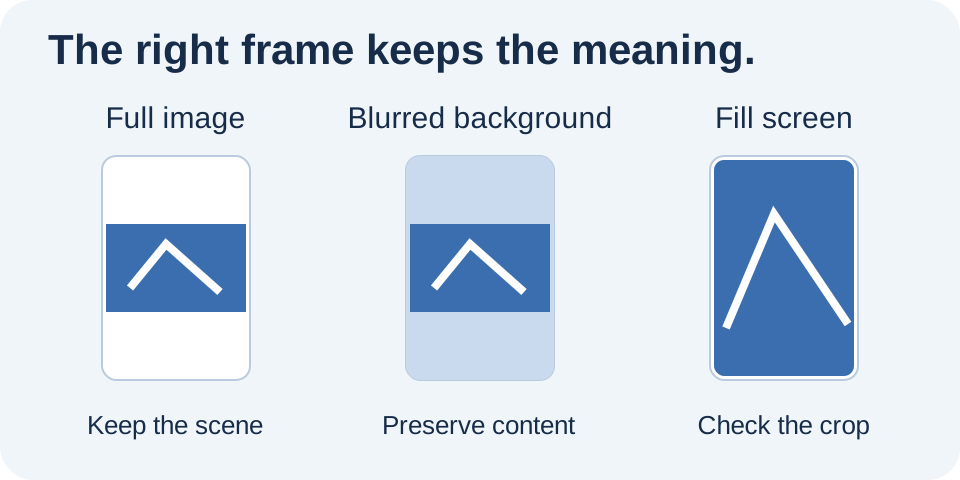
Keeping the full image preserves the scene but leaves space around it in a vertical frame. A blurred background can use that space without enlarging the subject as much as a crop. Filling the screen produces a tighter result: some of the scene necessarily disappears when the proportions differ.
A Relay draft offers full-image, blurred-background and fill-screen framing choices. These are layout options, not automatic recognition of the important gesture. The best solution depends on your demonstration, not a rule that every pixel must be filled. Compare the approaches before deciding what your viewers can afford to lose.
3. Check a sequence, not a still image
When cropping, inspect the beginning, the busiest passage and the ending. Moving the frame left may save a face while cutting off a hand that later enters from the right. For complex movement, prepare a dedicated edit rather than relying on one fixed framing position.
A bicycle tutorial shows the mechanic on the left and the wheel on the right. The full image preserves their relationship; a close vertical version needs another edit to explain the action without losing context.
Keep the reference export described in the original file guide so you can revisit the choice without damaging the source.
4. Check text at phone size
Subtitles embedded in the edit follow the crop. They can be cut off even when the face stays visible. Watch at a normal phone size and check that network controls do not hide essential information. No universal margin guarantees the same display across every app and viewing context.
Check the cover separately. YouTube explains that its player adapts to different aspect ratios; that does not mean one format or background suits every short-form publication. Read the subtitle guide before approving a scene with substantial text. Technical compatibility and comfortable reading are separate decisions.
5. Prepare a preview before publishing
In a Relay draft, prepare the final video to inspect the result without publishing. Compare the framing with your source file and return to the earlier choice if information disappears. A technically compatible video is not necessarily an understandable video, so keep both checks in your routine.
For important campaigns, also review destinations and approval mode. Relay helps prepare media and track outcomes without promising automatic artistic reframing. Join the waitlist to discover the iPhone workflow and choose simpler distribution without sacrificing the meaning of your images.
Put this into practice with Relay
Choose an authorized Instagram source, your destinations and whether to approve each video before publishing. Check compatibility before joining: the public iPhone app is in preparation.
Before you move on
- Identify the essential subject and context.
- Review movement in several passages.
- Check text and cover separately.
- Watch the final preview before sending.
Official references
Platform rules can change. Check these sources for eligibility and technical constraints.
Practical guidance, not a promise of reach. Examples are illustrative. The Relay Publish public app is in preparation; platform access and permissions remain required.