 Relay Publish
The short answer
Check the container, video codec, audio track, dimensions and duration. Renaming MOV to MP4 does not convert it. Retain the original, export a separate version matching the destination’s current requirements and play that new export before sending.
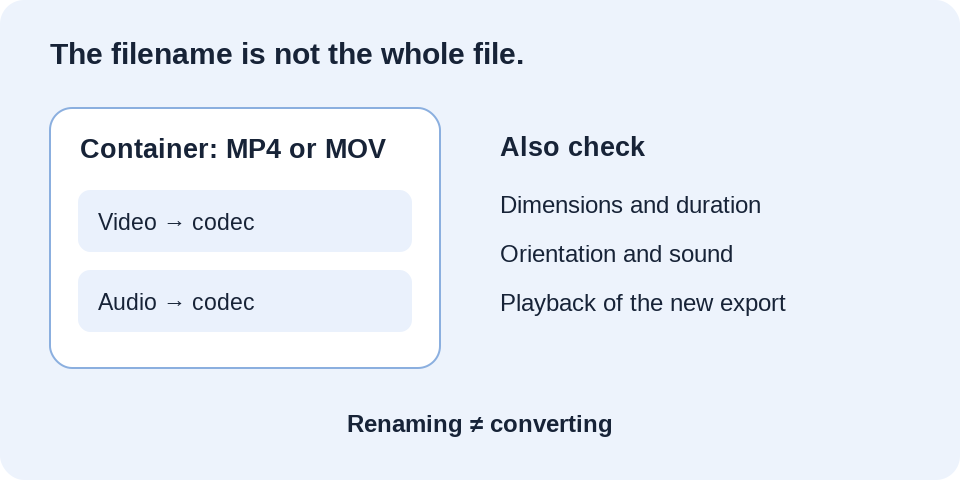
1. Separate the container from its contents
MP4 and MOV are containers. Inside are tracks such as video and, when present, audio. Two files with the same extension can use different codecs. A player opening one does not guarantee that every destination will accept another. Treat the extension as a starting clue rather than a complete technical description of the media.
Start with the file information or your editor’s export settings. Record the output format and codec actually selected. Do not turn a general recommendation into a guarantee: check the receiving network and publishing path against the particular file you intend to send.
2. Read the export settings
YouTube’s encoding recommendations include the MP4 container and H.264 video. That provides a documented starting point for YouTube, rather than a universal certification for every service. Duration, dimensions, sound, orientation and quality also matter. A compatible codec alone cannot establish that the finished media meets every requirement.
In your editing tool, select an explicit export rather than changing the filename. Keep the original before converting anything. The original-file guide helps separate the master from versions prepared for distribution. Give the exported version its own clear name so you know which one you are testing.
3. Do not mistake renaming for conversion
Changing “tutorial.mov” to “tutorial.mp4” changes the label, not the encoding inside. If a service rejects the codec, the new name will not fix that problem. A real conversion creates a new file from the original tracks with settings you can identify and check. Retain enough information to reproduce that export later.
A MOV export uses a codec your computer plays but the intended publishing path rejects. Keep that master and create a separate export using the destination’s documented settings. Inspect the new export without overwriting the original.
Record the exact filename sent to avoid testing the wrong version twice.
4. Play the new picture and sound
Open the new export before sending it. Watch the beginning, a moving sequence and the ending; listen to speech and music. Check duration and orientation too. A file can open without an error while still containing a cut-off ending, a silent track or framing that removes something important from the demonstration.
If quality drops, compare the master, export and published version separately. The blurry-video guide helps locate the loss without automatically blaming whichever network you checked last. Use the same sequence in each version for a fair visual comparison.
5. Check the destination after transfer
A completed transfer is not always a confirmed publication. Read the destination’s outcome and open its final link when available. If the file is rejected, retain the exact reason and export characteristics rather than renaming it or restarting the entire workflow without a diagnosis. Preserve confirmed results on destinations that already succeeded.
Relay prepares media and tracks results for compatible networks. That preparation does not replace checking current limits or the file’s actual contents. Explore the iPhone workflow and join the waitlist for news of the public app in preparation. Keep your master so you can correct an export without returning to the shoot.
Put this into practice with Relay
Choose an authorized Instagram source, your destinations and whether to approve each video before publishing. Check compatibility before joining: the public iPhone app is in preparation.
Before you move on
- Identify the container and codec separately.
- Keep the original before conversion.
- Play the new export and check sound and orientation.
- Check the final outcome and any specific rejection reason.
Official references
Platform rules can change. Check these sources for eligibility and technical constraints.
Practical guidance, not a promise of reach. Examples are illustrative. The Relay Publish public app is in preparation; platform access and permissions remain required.