 Relay Publish
The short answer
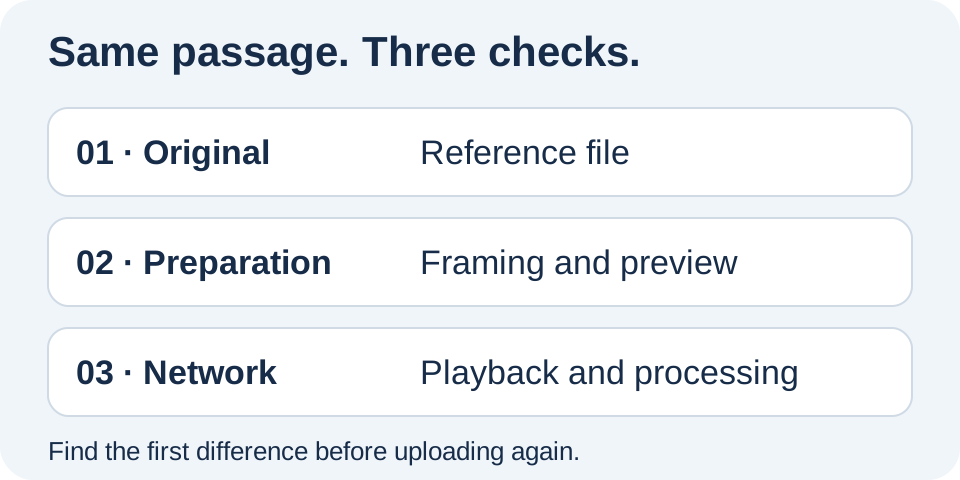
Compare the same passage in the reference file, prepared version and final publication. Check playback quality and network processing as well. Enlarging an image does not recreate detail that was already lost.
1. Find a genuine reference version
Open the editing export rather than relying only on the video visible in Instagram. Choose a passage with a recognizable detail: lettering on a product, a face or fast movement. Watch it at a comparable size on the same phone so enlargement is not mistaken for degradation.
If the passage is already blurry in the original file, investigate filming or editing. Uploading again will not repair missed focus. Keep the reference described in the master file guide instead of starting with a copy downloaded several times. Make sure you are comparing the version actually intended for distribution.
2. Examine what framing changes
A tight crop enlarges part of the image. The subject takes up more of the screen, but small details may look less sharp. Compare a full-scene version with one that fills the frame. File size alone cannot tell you how good a video will look.
Relay prepares videos compatible with its publishing workflow; normalization does not restore detail missing from the received media. In a draft, prepare the final preview and review your chosen passage. The vertical framing guide helps you decide what you actually want to enlarge rather than assuming a full screen always looks better.
3. Separate playback from the available file
On YouTube, a video may first be available at lower quality while more detailed versions are still processing. Check player quality options and processing status before concluding that the uploaded file is permanently degraded. Timing varies, so avoid expecting a guaranteed result after a fixed number of minutes.
Product lettering is readable in the export and prepared preview, but looks blurry in YouTube playback immediately after upload. Check processing and the selected quality before creating another upload.
Then compare other destinations individually. One network’s behaviour does not automatically describe every other network or every viewing device.
4. Address a specific cause rather than every setting
If the issue appears in the export, prepare a corrected version from the edit. If it appears in the prepared preview, inspect framing and the available source file. If it appears only in network playback, check that player’s options and messages first. Record the affected passage so you can repeat the comparison.
Changing resolution, frame rate and framing together makes diagnosis harder. Change one thing at a time. Do not describe conversion to a larger resolution as guaranteed detail recovery: it can merely enlarge flaws already present. Keep a copy of the starting point before preparing another variant.
5. Keep the existing link while the outcome is uncertain
A temporary appearance does not justify immediately resending the same video to every destination. Keep confirmed links and address the affected network. For support, identify the passage, reference version and stage where the change appears without unnecessarily sharing confidential content.
Relay brings preparation and tracking together to make this comparison easier, without guaranteeing identical quality after every external process. The public app is in preparation. Join the waitlist to discover an iPhone workflow that helps you understand the outcome before multiplying manual operations.
Put this into practice with Relay
Choose an authorized Instagram source, your destinations and whether to approve each video before publishing. Check compatibility before joining: the public iPhone app is in preparation.
Before you move on
- Compare the same passage at similar sizes.
- Check the source file and framing.
- Review playback quality and processing.
- Address one identified cause before retrying.
Official references
Platform rules can change. Check these sources for eligibility and technical constraints.
Practical guidance, not a promise of reach. Examples are illustrative. The Relay Publish public app is in preparation; platform access and permissions remain required.